Adeloop Computer Vision Examples
Using MediaPipe, CVZone, and OpenCV in Adeloop notebooks
Computer Vision Examples for Adeloop
This guide demonstrates how to use MediaPipe, CVZone, and OpenCV in the Adeloop notebook environment. These examples show how to perform various computer vision tasks directly in your notebook cells.
Overview
Computer vision is a field of artificial intelligence that enables computers to interpret and understand visual information from the world. In Adeloop, you can leverage powerful libraries like MediaPipe, OpenCV, and CVZone to perform image and video analysis directly in your notebooks.
Example 1: Basic MediaPipe Hand Detection
This example shows how to detect hands in images using MediaPipe:
# Cell 1: Basic MediaPipe Hand Detection
def hand_detection_example():
    """
    Example showing MediaPipe hand detection
    """
    import cv2
    import mediapipe as mp
    import numpy as np
    import matplotlib.pyplot as plt

    # Initialize MediaPipe hands
    mp_hands = mp.solutions.hands
    hands = mp_hands.Hands(
        static_image_mode=True,
        max_num_hands=2,
        min_detection_confidence=0.5
    )
    mp_draw = mp.solutions.drawing_utils

    # Create a demo image (in real use, you'd load an actual image)
    img = np.ones((480, 640, 3), dtype=np.uint8) * 255
    cv2.putText(img, "MediaPipe Hand Detection Demo", (100, 50),
                cv2.FONT_HERSHEY_SIMPLEX, 1, (0, 0, 0), 2)
    cv2.putText(img, "Load your own image for real detection", (80, 400),
                cv2.FONT_HERSHEY_SIMPLEX, 0.7, (100, 100, 100), 2)

    # Process the image
    rgb_img = cv2.cvtColor(img, cv2.COLOR_BGR2RGB)
    results = hands.process(rgb_img)

    # Draw hand landmarks if detected
    if results.multi_hand_landmarks:
        for hand_landmarks in results.multi_hand_landmarks:
            mp_draw.draw_landmarks(img, hand_landmarks, mp_hands.HAND_CONNECTIONS)

    # Display the result
    plt.figure(figsize=(12, 8))
    plt.imshow(cv2.cvtColor(img, cv2.COLOR_BGR2RGB))
    plt.title('MediaPipe Hand Detection Example')
    plt.axis('off')
    return get_plot()

# Run the example
result = hand_detection_example()
Example 2: Face Detection with MediaPipe
This example demonstrates face detection using MediaPipe:
# Cell 2: Face Detection with MediaPipe
def face_detection_example():
    """
    Example showing MediaPipe face detection
    """
    import cv2
    import mediapipe as mp
    import numpy as np
    import matplotlib.pyplot as plt

    # Initialize MediaPipe face detection
    mp_face_detection = mp.solutions.face_detection
    mp_draw = mp.solutions.drawing_utils

    face_detection = mp_face_detection.FaceDetection(
        model_selection=0, min_detection_confidence=0.5)

    # Create a demo image
    img = np.ones((480, 640, 3), dtype=np.uint8) * 240
    cv2.putText(img, "MediaPipe Face Detection", (150, 100),
                cv2.FONT_HERSHEY_SIMPLEX, 1, (50, 50, 50), 2)
    cv2.putText(img, "Upload a photo with faces", (170, 350),
                cv2.FONT_HERSHEY_SIMPLEX, 0.8, (100, 100, 100), 2)

    # Process the image
    rgb_img = cv2.cvtColor(img, cv2.COLOR_BGR2RGB)
    results = face_detection.process(rgb_img)

    # Draw face detections
    if results.detections:
        for detection in results.detections:
            mp_draw.draw_detection(img, detection)

    # Display the result
    plt.figure(figsize=(12, 8))
    plt.imshow(cv2.cvtColor(img, cv2.COLOR_BGR2RGB))
    plt.title('MediaPipe Face Detection Example')
    plt.axis('off')
    return get_plot()

# Run the example
result = face_detection_example()
Example 3: Image Processing with PIL and OpenCV
This example shows basic image processing techniques:
# Cell 3: Image Processing with PIL and OpenCV
def image_processing_example():
    """
    Example showing basic image processing
    """
    import cv2
    import numpy as np
    from PIL import Image, ImageDraw, ImageFont
    import matplotlib.pyplot as plt

    # Create an image with PIL
    img = Image.new('RGB', (600, 400), color='lightblue')
    draw = ImageDraw.Draw(img)

    # Draw shapes and text
    draw.rectangle([50, 50, 550, 350], outline='red', width=3)
    draw.ellipse([100, 100, 500, 300], fill='yellow', outline='blue', width=2)
    draw.text((200, 180), "Computer Vision", fill='black')
    draw.text((220, 220), "with Adeloop", fill='darkblue')

    # Convert to numpy array
    img_array = np.array(img)

    # Apply some OpenCV operations
    gray = cv2.cvtColor(img_array, cv2.COLOR_RGB2GRAY)
    edges = cv2.Canny(gray, 50, 150)

    # Create a subplot to show original and processed
    fig, (ax1, ax2) = plt.subplots(1, 2, figsize=(15, 6))

    ax1.imshow(img_array)
    ax1.set_title('Original Image')
    ax1.axis('off')

    ax2.imshow(edges, cmap='gray')
    ax2.set_title('Edge Detection')
    ax2.axis('off')

    plt.tight_layout()
    return get_plot()

# Run the example
result = image_processing_example()
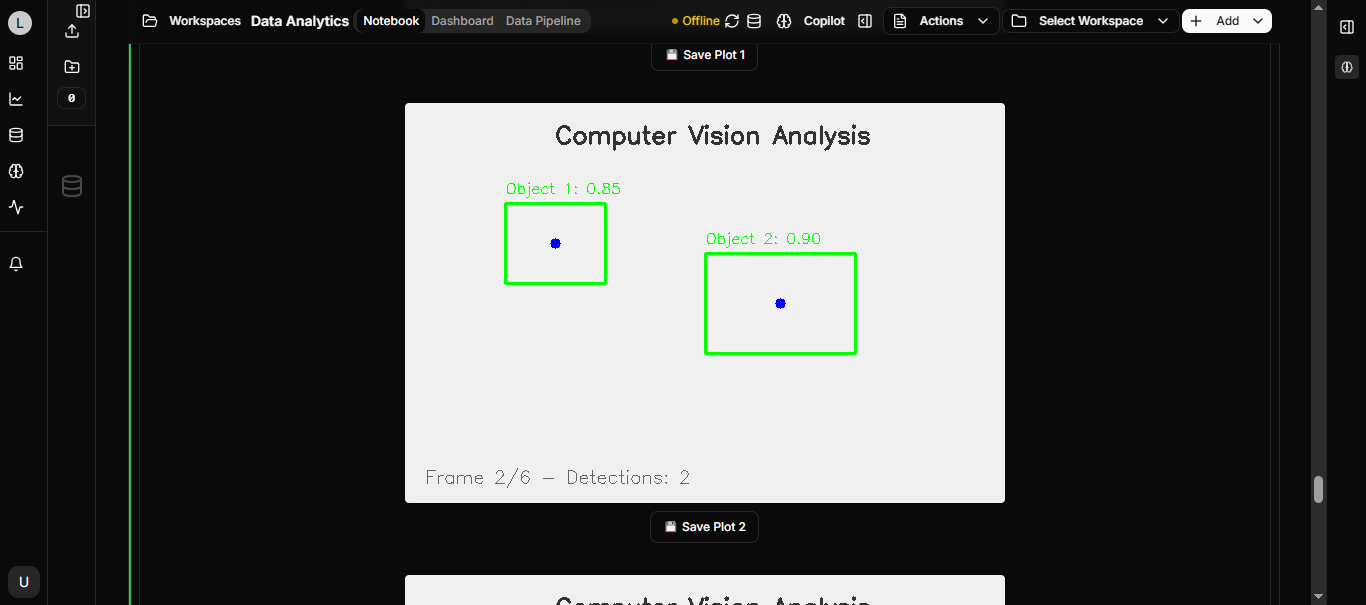
Example 4: Creating Video Frames
This example shows how to create and process video-like frames:
# Cell 4: Creating Video Frames
def video_frame_example():
    """
    Example showing how to create and process video-like frames
    """
    import cv2
    import numpy as np
    import matplotlib.pyplot as plt

    # Create a series of frames (simulating video)
    frames = []
    for i in range(5):
        # Create a frame
        frame = np.zeros((300, 400, 3), dtype=np.uint8)

        # Add moving circle
        center_x = 50 + i * 70
        cv2.circle(frame, (center_x, 150), 30, (0, 255, 255), -1)

        # Add frame number
        cv2.putText(frame, f"Frame {i+1}", (10, 30),
                   cv2.FONT_HERSHEY_SIMPLEX, 1, (255, 255, 255), 2)

        frames.append(frame)

    # Display all frames
    fig, axes = plt.subplots(1, 5, figsize=(20, 4))
    for i, (frame, ax) in enumerate(zip(frames, axes)):
        ax.imshow(cv2.cvtColor(frame, cv2.COLOR_BGR2RGB))
        ax.set_title(f'Frame {i+1}')
        ax.axis('off')

    plt.tight_layout()
    return get_plot()

# Run the example
result = video_frame_example()
Example 5: Streamlit App Template
This example provides a template for creating Streamlit apps:
# Cell 5: Streamlit App Template
def streamlit_app_template():
    """
    Template for creating Streamlit apps
    """
    app_code = '''
import streamlit as st
import cv2
import numpy as np
from PIL import Image
import mediapipe as mp

st.title("🎯 Computer Vision App")
st.write("Upload an image for computer vision processing")

# Sidebar for options
st.sidebar.header("Processing Options")
processing_type = st.sidebar.selectbox(
    "Choose processing type:",
    ["Original", "Grayscale", "Edge Detection", "Face Detection", "Hand Detection"]
)

# File uploader
uploaded_file = st.file_uploader("Choose an image", type=['jpg', 'png', 'jpeg'])

if uploaded_file is not None:
    # Display the uploaded image
    image = Image.open(uploaded_file)
    img_array = np.array(image)

    col1, col2 = st.columns(2)

    with col1:
        st.subheader("Original Image")
        st.image(image, use_column_width=True)

    with col2:
        st.subheader(f"Processed: {processing_type}")

        if processing_type == "Original":
            st.image(image, use_column_width=True)
        elif processing_type == "Grayscale":
            gray = cv2.cvtColor(img_array, cv2.COLOR_RGB2GRAY)
            st.image(gray, use_column_width=True)
        elif processing_type == "Edge Detection":
            gray = cv2.cvtColor(img_array, cv2.COLOR_RGB2GRAY)
            edges = cv2.Canny(gray, 100, 200)
            st.image(edges, use_column_width=True)
        elif processing_type == "Face Detection":
            # MediaPipe face detection
            mp_face_detection = mp.solutions.face_detection
            mp_draw = mp.solutions.drawing_utils

            with mp_face_detection.FaceDetection(min_detection_confidence=0.5) as face_detection:
                results = face_detection.process(img_array)

                if results.detections:
                    for detection in results.detections:
                        mp_draw.draw_detection(img_array, detection)

                st.image(img_array, use_column_width=True)
        elif processing_type == "Hand Detection":
            # MediaPipe hand detection
            mp_hands = mp.solutions.hands
            mp_draw = mp.solutions.drawing_utils

            with mp_hands.Hands(min_detection_confidence=0.5) as hands:
                results = hands.process(img_array)

                if results.multi_hand_landmarks:
                    for hand_landmarks in results.multi_hand_landmarks:
                        mp_draw.draw_landmarks(img_array, hand_landmarks, mp_hands.HAND_CONNECTIONS)

                st.image(img_array, use_column_width=True)

st.markdown("---")
st.write("💡 **Tip**: Try uploading different images to see various computer vision techniques in action!")
'''

    print("Streamlit App Code:")
    print("=" * 50)
    print(app_code)
    print("=" * 50)
    print("\nTo run this app:")
    print("1. Save the code above to a file (e.g., 'cv_app.py')")
    print("2. Run: streamlit run cv_app.py")
    print("3. The app will open in your browser")

    return "Streamlit app template generated. See output above."

# Run the example
result = streamlit_app_template()
Using These Examples in Adeloop
To use these examples in your Adeloop notebooks:
- Copy the code from each cell into separate notebook cells
- Run the cells in order to see the visualizations
- Modify the parameters to experiment with different settings
- Replace the demo images with your own images for real analysis
Key Points to Remember
- Always import the required libraries at the beginning of each cell
- Use
get_plot()to display matplotlib figures in Adeloop - MediaPipe requires RGB images, so convert BGR to RGB when needed
- OpenCV uses BGR color format by default, while matplotlib uses RGB
These examples provide a foundation for building more complex computer vision applications in Adeloop.