Jupyter-like Features
All the familiar Jupyter functionality enhanced for the cloud
How Adeloop notebooks collaborate with AI
Adeloop wraps a familiar Jupyter-style notebook with an AI assistant that sits in-line with your code and results, helping you explore data, summarize insights, and generate visualizations without leaving the notebook.
- Upload ipynb extension and continue doing data analysis with the help of AI
- Share notebooks to GenIDE to generate a dashboard report in order to share it to other teams.
Overview
Adeloop provides all the familiar Jupyter-like features you expect, enhanced with cloud capabilities for improved performance and collaboration.
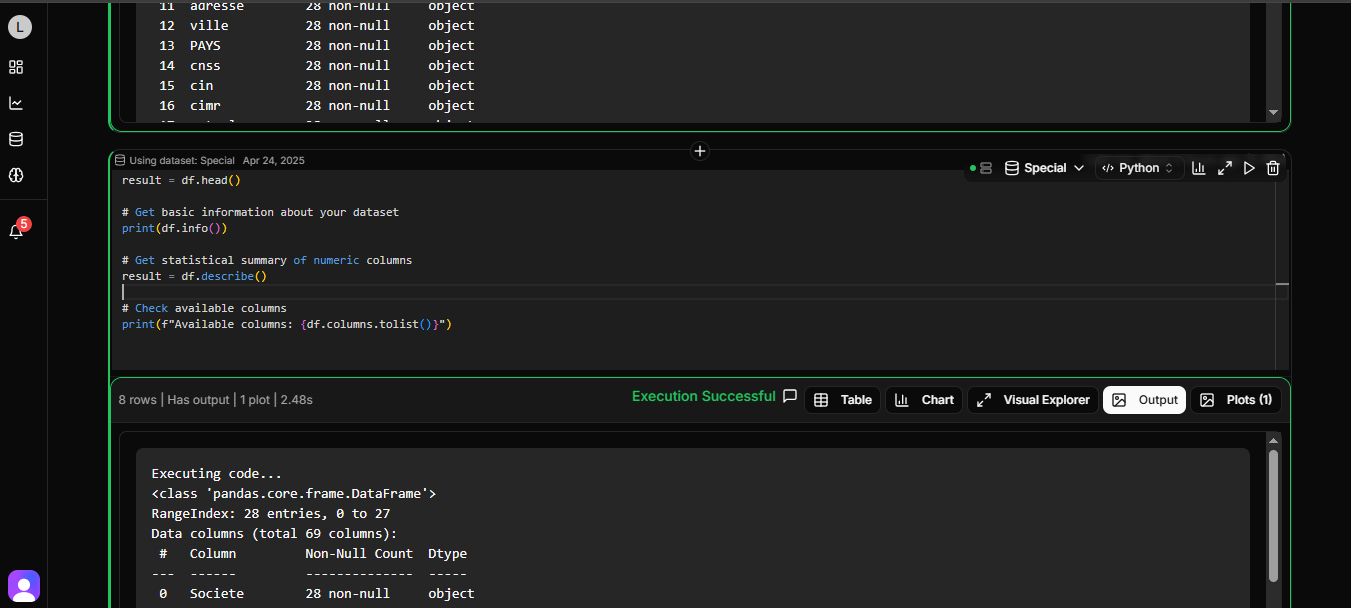
Jupyter-like features in Adeloop allow you to work with code and data interactively. This includes:
- Variable persistence across cells
- Sequential execution counting
- Rich output display (DataFrames, plots)
- Dataset integration
- Magic commands and shell access
Core Features
Variable Persistence
Variables defined in one cell execution persist across subsequent executions:
# First cell
x = 10
y = 20

# Second cell - variables x and y are still available
z = x + y
print(z)  # Output: 30
This persistence lets you build analyses incrementally while maintaining your workspace state.
Execution Count Tracking
Each code execution gets a sequential number to track operation order:
# This will be [1]
data = [1, 2, 3]

# This will be [2]
data.append(4)

# This will be [3]
print(len(data))  # Output: 4
Rich Output Display
Adeloop supports interactive visualization of various data types:
import pandas as pd
import matplotlib.pyplot as plt

# DataFrames display as interactive tables
df = pd.DataFrame({
    "A": [1, 2, 3],
    "B": [4, 5, 6]
})
result = df

# Plots render inline
plt.plot(df["A"], df["B"])
plt.title("Sample Plot")
plt.show()
Dataset Access
Selected datasets are automatically available as DataFrames:
# Direct access (recommended)
print(paie.head())
print(paie.shape)

# Also available as df1, df2, etc.
print(df1.head())
print(df2.head())
Best Practices
-
Variable Management
- Clear unused variables with
%reset - Use descriptive names
- Check memory usage with
df.info()
- Clear unused variables with
-
Data Handling
- Preview data before operations
- Use efficient formats (Parquet)
- Handle large datasets in chunks
-
Code Organization
- Keep cells focused and small
- Add markdown cells for documentation
- Use sequential execution order
See Also
- Rich Output Support - Advanced visualization
- Dataset Access - Working with data sources