Adeloop DataFrame Display in Table Tab
How to display DataFrames in the table tab
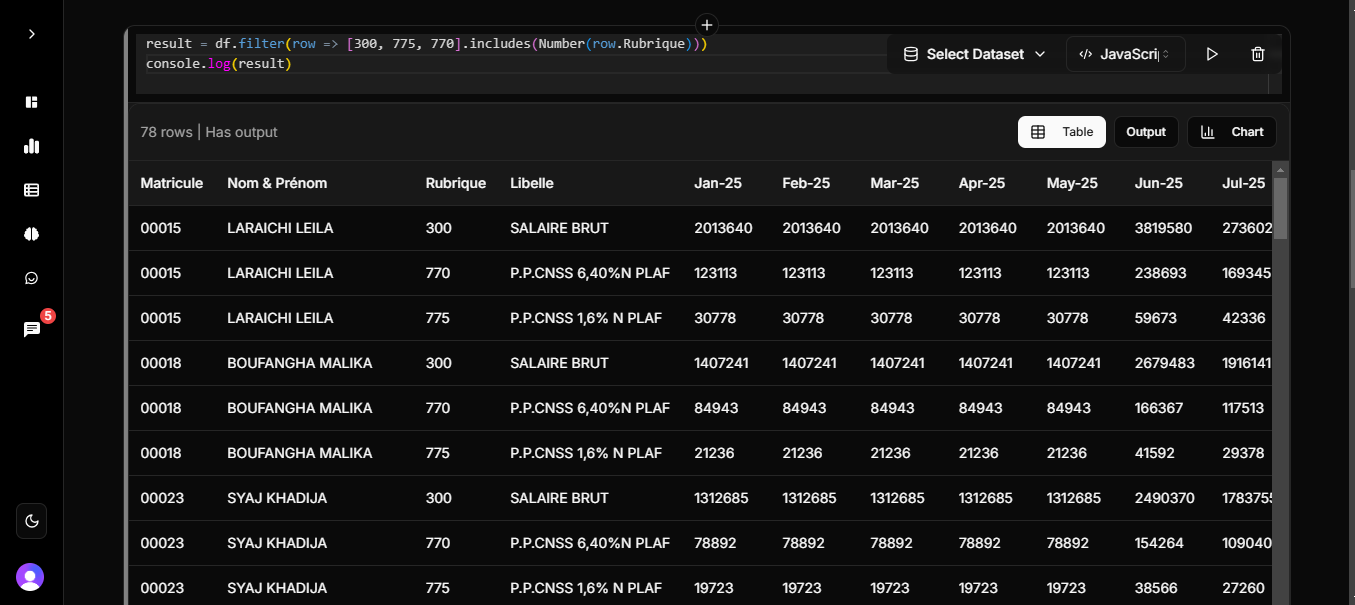
DataFrame Display in Table Tab
When working with DataFrames in Python cells, you can easily display them in the table tab by assigning the DataFrame to the result variable:
#!/usr/bin/env python3
"""
Test DataFrame display in table tab
"""

import pandas as pd
import numpy as np

# Test 1: Create a simple DataFrame
print("🧪 Testing DataFrame Display")
data = {
    'Name': ['Alice', 'Bob', 'Charlie', 'Diana', 'Eve'],
    'Age': [25, 30, 35, 28, 32],
    'City': ['New York', 'London', 'Tokyo', 'Paris', 'Berlin'],
    'Salary': [50000, 60000, 70000, 55000, 65000],
    'Department': ['Engineering', 'Marketing', 'Sales', 'HR', 'Engineering']
}

df = pd.DataFrame(data)
print("Created DataFrame:")
print(df)

# Test 2: Assign to result variable (should show in table tab)
print("\n📊 Assigning DataFrame to result variable")
result = df
print("DataFrame assigned to 'result' variable")

# This should trigger table view
result

# Test 3: Create another DataFrame
print("\n📈 Creating another DataFrame")
sales_data = {
    'Month': ['Jan', 'Feb', 'Mar', 'Apr', 'May'],
    'Sales': [1000, 1200, 1100, 1300, 1400],
    'Profit': [200, 240, 220, 260, 280]
}

sales_df = pd.DataFrame(sales_data)
print("Sales DataFrame:")
print(sales_df)

# Test 4: Return the sales DataFrame
print("\n💰 Returning sales DataFrame")
sales_df
Working with Multiple Datasets
When working with multiple datasets, you can display them individually or combine them for analysis:
Loading Multiple Datasets
# Check available datasets
show_datasets()

// Load multiple datasets
df1 = pd.read_csv('dataset1.csv')
df2 = pd.read_csv('dataset2.csv')

print(f"Dataset 1: {df1.shape[0]} rows, {df1.shape[1]} columns")
print(f"Dataset 2: {df2.shape[0]} rows, {df2.shape[1]} columns")

// Show column names
print(f"Dataset 1 columns: {df1.columns.tolist()}")
print(f"Dataset 2 columns: {df2.columns.tolist()}")

// Display first dataset in table tab
result = df1
Combining Multiple Datasets
// Concatenate datasets
combined_df = pd.concat([df1, df2], ignore_index=True)
print(f"Combined dataset: {combined_df.shape[0]} rows, {combined_df.shape[1]} columns")

// Display combined dataset
result = combined_df
Merging Datasets on Common Columns
// Find common columns
common_cols = set(df1.columns) & set(df2.columns)
print(f"Common columns: {list(common_cols)}")

// Merge datasets if common column exists
if common_cols:
    merged_df = pd.merge(df1, df2, on=list(common_cols)[0], how='inner')
    print(f"Merged dataset shape: {merged_df.shape}")

    // Display merged dataset
    result = merged_df
How It Works
When you run this code in a Python cell:
- The first DataFrame (
df) will be displayed in the table tab because it's assigned to theresultvariable - The second DataFrame (
sales_df) will also be displayed in the table tab because it's the last expression in the cell
This makes it easy to visualize your data directly in the table tab without needing to manually export or convert the data.
Key Points
- ✅ Assign DataFrames to the
resultvariable to display them in the table tab - ✅ Return DataFrames as the last expression in a cell to display them in the table tab
- ✅ No additional code or conversion is needed
- ✅ Works with any pandas DataFrame
- ✅ Supports all DataFrame features (sorting, filtering, etc.)
- ✅ Works with multiple datasets when properly loaded and combined
Benefits
This approach provides several benefits:
- Easy Visualization: View your data immediately without additional steps
- Interactive Exploration: Sort, filter, and explore your data directly in the table tab
- Seamless Workflow: No need to export or convert data to view it
- Consistent Experience: Works the same way across all Python cells
- Multiple Dataset Support: Easily work with and visualize multiple datasets